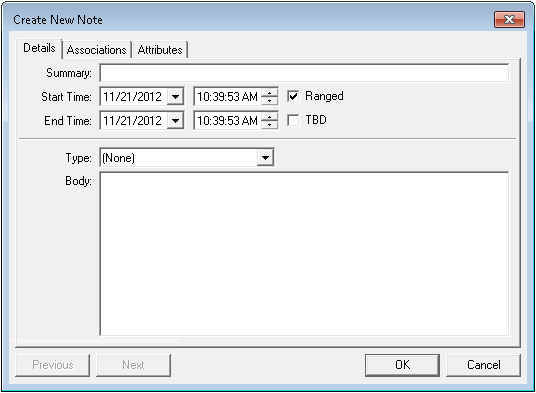
Notes may be created for a Note Service by using CygNet Explorer or by using applicable tools, like a Trend Tool. The following instructions explain how to create a note by using CygNet Explorer, but most of the steps apply to creating a note from any applicable interface.
To Create a Note from CygNet Explorer
The following table lists and describes the properties of the Create New Note dialog box.
| Property | Description |
|---|---|
|
Summary |
This field contains relevant summary text. This field is useful but optional if the Type sufficiently defines the purpose of the note. Note: In Edit mode misspelled words will be underlined with a red wavy line; right-click the word to select a suggested correction from the system dictionary. Spell check is only available in a CygNet installation running on Windows 8.1 or Windows Server 2012 R2 and above. The system dictionary is located under %AppData%\Microsoft\Spelling. |
|
Start Time |
Specifies the point in time to which the note applies or specifies the beginning of a time span to which the note applies. |
|
End Time |
Specifies the ending of a span of time to which a note applies. Used in conjunction with Start Time and TBD. |
|
Ranged |
Check this box if your note applies to a time span, not just a point in time. For example, the Ranged option is useful for representing events like a station down for maintenance or a period of time during which a pig was in the line and line pressures spiked. |
|
TBD |
Check this box if you do not want to specify an end time but know that this is a ranged event. The end time for this note continues to extend as long as TBD is checked. |
|
Type |
List of user-defined values used to categorize notes. See also Defining Note Types. |
|
Body |
This is the body text of the note. If the Summary and/or Type adequately define your note, you might not need to fill out this field. Note: In Edit mode misspelled words will be underlined with a red wavy line; right-click the word to select a suggested correction from the system dictionary. Spell check is only available in a CygNet installation running on Windows 8.1 or Windows Server 2012 R2 and above. The system dictionary is located under %AppData%\Microsoft\Spelling. |

|
|
|

